
You can do your live show in VR180 3D. Fans with a VR headset then watch you as if they were in the room with you; on phones and computers your show looks as usual. All you need is OBS or a VR camera, plus one setting in your studio: VR180 (for VR headsets).
This guide is for creators who stream with OBS or a camera. The webcam in your browser cannot do VR180 — it only films a flat picture.
In short — how VR180 works
A VR180 camera has two lenses next to each other, like your two eyes. That is why a fan wearing a VR headset sees you in 3D and can look around, as if standing right in front of you.
Fans with a headset watch you in our VR hub. Everyone else — on a phone or computer — automatically sees your normal show, so nobody misses out. Below you find every step.
1. What you need
- A VR180 camera with two lenses next to each other (section 2 shows which ones work).
- OBS Studio (free, for Windows, Mac and Linux) — or a VR camera that streams by itself with its own app.
- Streaming with OBS or a camera unlocked in your studio (section 3). If you already stream with OBS or a DJI camera, you have this.
- Fast, stable internet: a speed test should show at least 20 for “Upload” — about four times what a normal show needs.
- A headset to check yourself (Meta Quest 2/3/Pro or any headset with a browser). Not required, but you will want to see what your viewers see.
2. Which camera works
VR cameras send one of two kinds of picture. Both work — you just tell the studio which one yours sends:
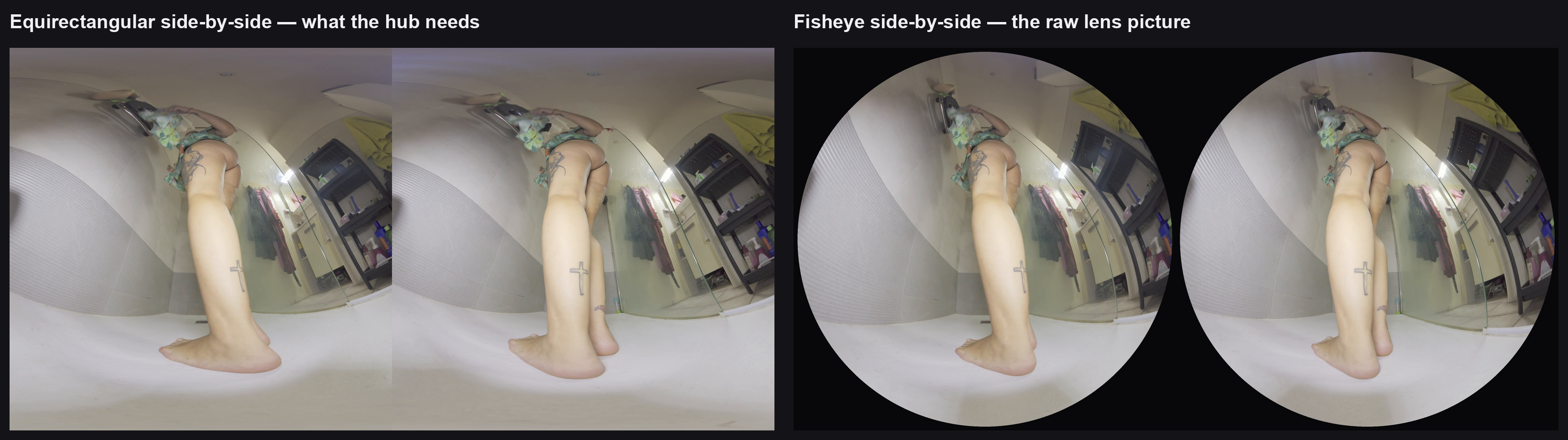
- Finished VR picture (two eyes next to each other): left eye on the left, right eye on the right — not one above the other. In the studio choose “Yes — VR180, finished VR picture from OBS or the camera app”.
- Two round pictures side by side: what many VR cameras send straight from the lens. In the studio choose the entry with your lens (180°, 190° or 200°) — we prepare the picture for you.
- 3840×1920 and 30 frames per second. If your camera, app or OBS lets you choose, take exactly these values. 60 is not needed.
- Put the camera on a stand at your viewers’ eye height and don’t move it. A moving VR camera makes people feel sick in a headset.
Which cameras produce this?
- Cameras that make the finished VR picture themselves (for example the Kandao VR Cam with its Kandao Stream app) send it straight to us — no OBS needed. That is the easiest way.
- USB VR webcams (for example the VR.cam 02) show up in OBS like a normal camera — they send two round pictures.
- Photo and film cameras with a double VR lens (for example the Canon EOS R5 C with the RF 5.2 mm lens) are connected to OBS with a capture card — they also send two round pictures.
- Our recommendation up to 1,000 € — with prices — is in Recording and selling VR → Which camera?. Both picks there (SLAM XCAM, CALF × VISINSE) stream to us by themselves, without OBS; the VR.cam 02 goes through OBS.
Two round pictures are fine. Choose the entry with your lens in the studio and we prepare the picture before your fans see it. One tip for OBS: each round picture must fill its half from top to bottom (in OBS, adjust it so the circle touches the top and bottom edge), left eye on the left.
3. Unlock streaming with OBS or a camera (once)
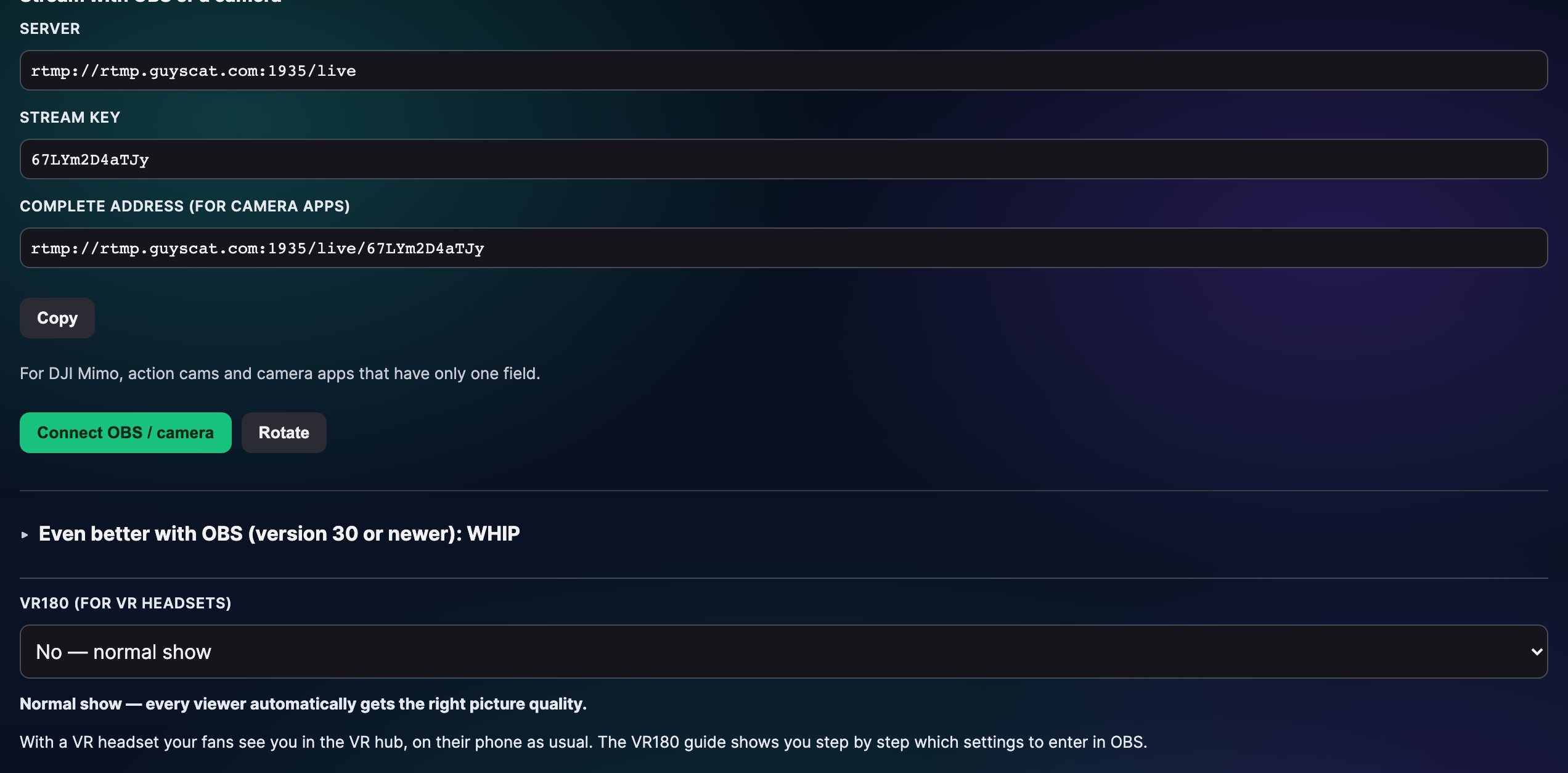
- Open Store Manager → Livestream.
- At the top, switch from “Webcam” to “OBS / camera”.
- The first time you see “Why do you want to stream with OBS or a camera?” — write one line and send it. We then unlock it for your store.
- After that you see Server, Stream key and Complete address (for camera apps), with the buttons Copy, Connect OBS / camera and Rotate.
Your stream key works like a password — never share it. Rotate makes a new key and the old one stops working; then enter the new one in OBS. Use it if someone else got your key.
4. Set up OBS Studio
Enter these values in OBS. They are the same on Windows and Mac.
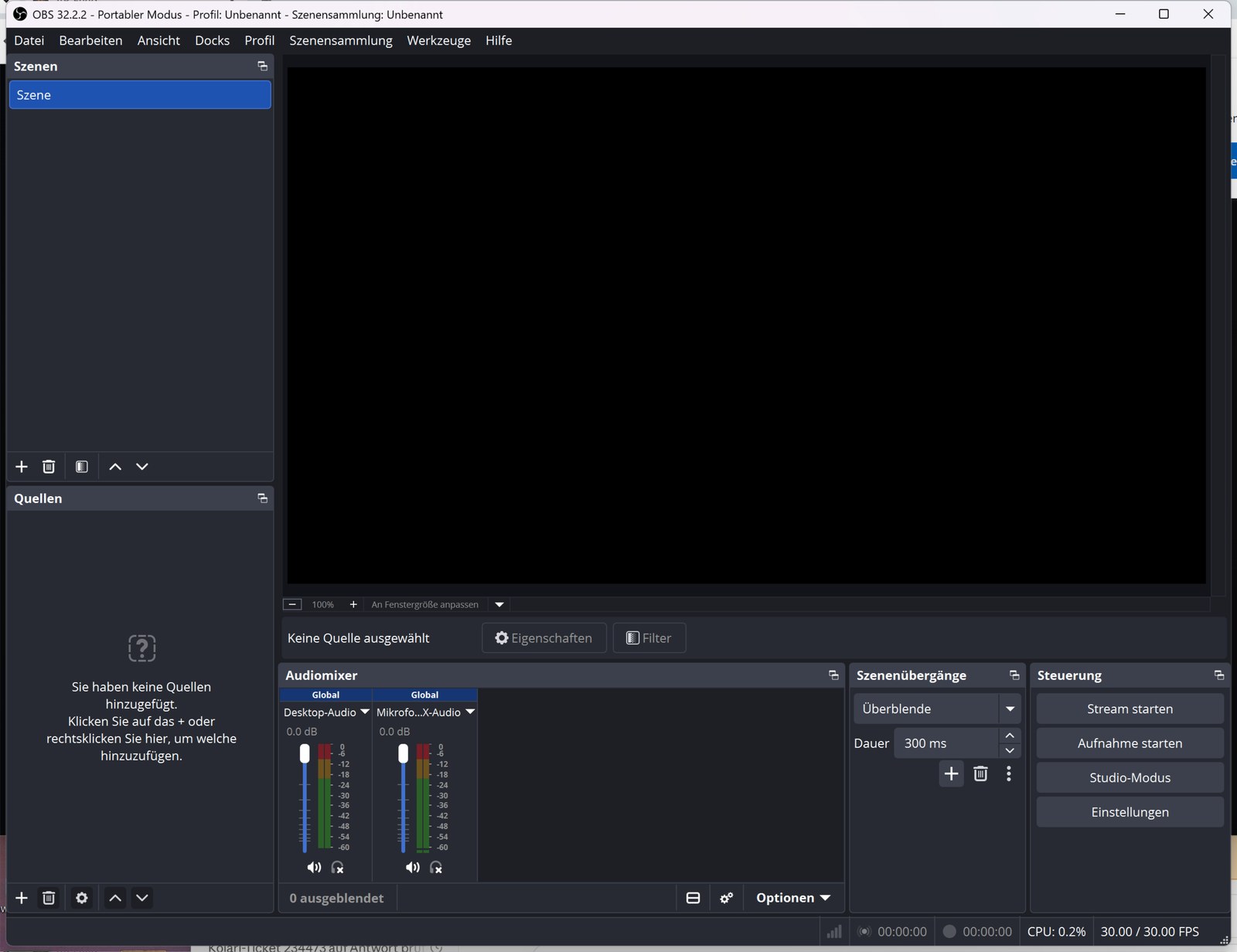
- Settings → Video: Base (Canvas) Resolution 3840×1920, Output (Scaled) Resolution 3840×1920, Common FPS 30.
- Sources → + → Video Capture Device: choose your VR camera (or the capture card). In its properties set 3840×1920 and 30 FPS. The picture must fill the whole OBS preview — no black border, nothing cut off — otherwise the two eyes end up in the wrong place.
- Settings → Output: set “Output Mode” to Advanced and open the Streaming tab. Leave “Video Encoder” as it is. Enter “Bitrate” 16000 and “Keyframe Interval” 2, and set B-frames to 0 (see below).
- Settings → Audio: Sample Rate 48 kHz, Channels Stereo.
- Settings → Stream: “Service” Custom…. At “Server” paste the server from the line Server for VR180 in your studio (
rtmp://rtmp-vr.guyscat.com:1936/vr— it appears once VR180 is switched on, section 5). At “Stream Key” paste your Stream key. Click OK. - Do not click “Start Streaming” yet — first switch on VR180 (section 5) and click “Connect OBS / camera” (section 6).
Important: set B-frames to 0. Then your fans get your picture exactly as sharp as you send it, and more VR shows fit on our servers at the same time. You will not see any difference on your side.
- If “Video Encoder” shows NVIDIA: set B-Frames to 0.
- If “Video Encoder” shows Apple VT (Mac): untick Use B-Frames.
- If “Video Encoder” shows x264: type
bframes=0into x264 Options. - Camera that streams by itself: if its app has a “B-frames” setting, set it to 0. If not, that’s fine — your show runs as usual.
Camera that streams by itself: paste the Complete address (for camera apps) into its app. If the app lets you choose, set 3840×1920, 30 frames per second, “Bitrate” 16000 (in some apps: 16) and “Keyframe interval” 2.
5. Switch on VR180 in your studio
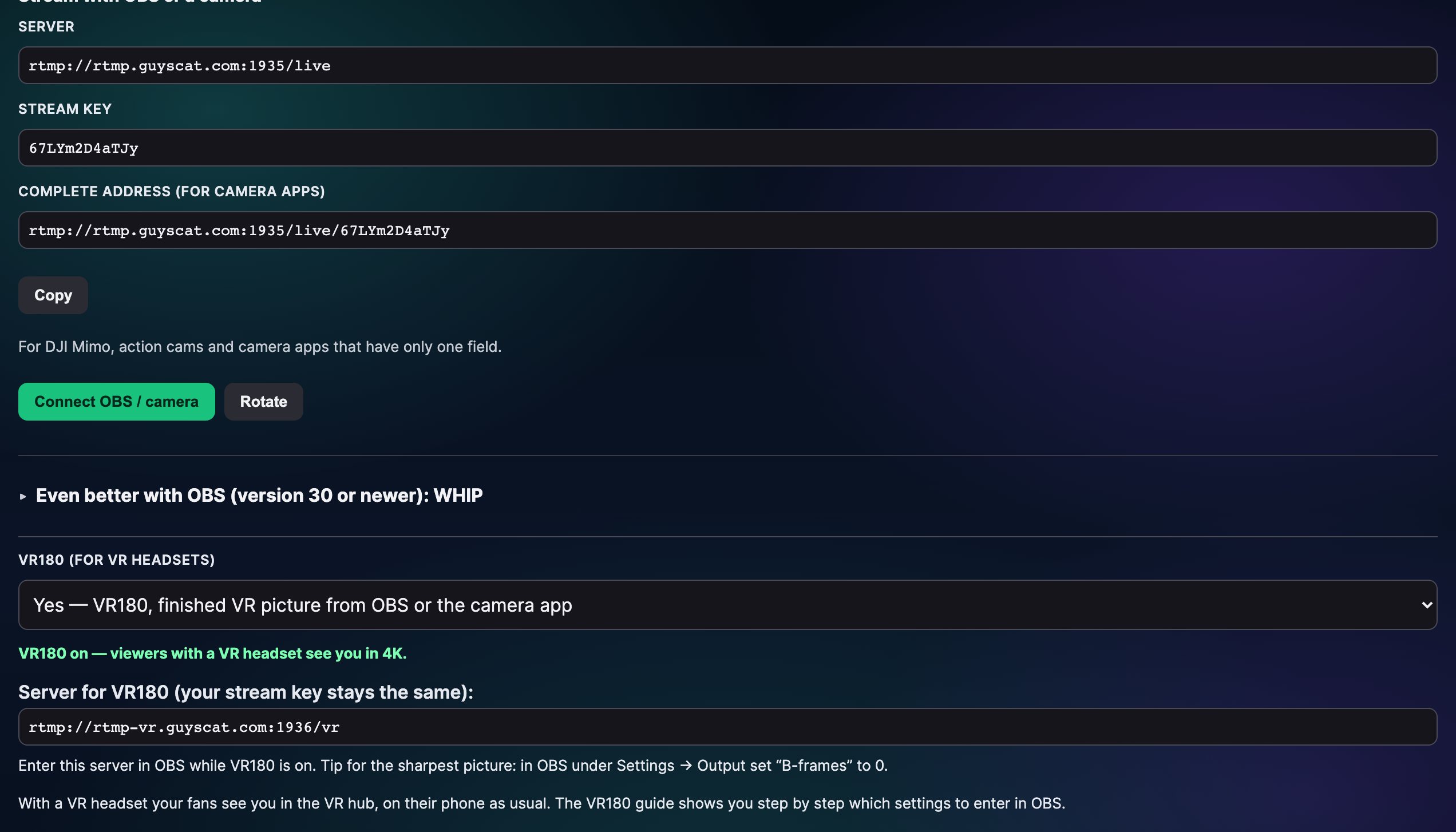
Set it once; it stays until you change it back.
- In the OBS / camera view, below Connect OBS / camera and Rotate, find VR180 (for VR headsets).
- Choose “Yes — VR180, finished VR picture from OBS or the camera app”. If your camera sends two round pictures, choose the entry with your lens instead, for example “Yes — VR camera with two round pictures, 180° lens (we prepare it)” — there are also entries for 190° (e.g. Canon) and 200°.
- The line below changes and confirms that VR180 is on.
- A second line appears: Server for VR180 (your stream key stays the same):
rtmp://rtmp-vr.guyscat.com:1936/vr. While VR180 is on, enter this server in OBS or your camera app. With two round pictures you must use it; with a finished VR picture the normal server works too.
If you choose “Yes” before streaming with OBS / camera is unlocked, VR180 switches on by itself as soon as it is unlocked. A new stream key does not change your VR180 setting.
For normal shows, set it back to “No — normal show”. Otherwise fans without a headset get a worse picture than necessary.
What viewers see on /live. While the switch is on and you are live, your card on the /live overview carries a VR180 · 3D badge and is counted in the VR segment, and your store keeps the small VR mark from then on.
6. Go live
- In the studio click Connect OBS / camera. The studio shows “Waiting for your picture… start streaming in OBS or your camera app now.”
- In OBS click Start Streaming (or start streaming in your camera app).
- After 10–30 seconds your picture appears in the studio, together with the button Go live with OBS / camera. You see your picture twice, side by side — that is correct.
- Click this button. Your show is live: chat, viewer count, tips and Lovense work exactly like in a webcam show.
- To end: click End show in the studio first, then stop OBS.
If you set a tip goal in the studio, fans in a headset see it too: a bar with the title, the tokens collected so far and the percentage, plus the top tippers of this show. When the goal is reached, there is a short celebration with confetti and a little buzz in their controllers.
7. Check it in a headset
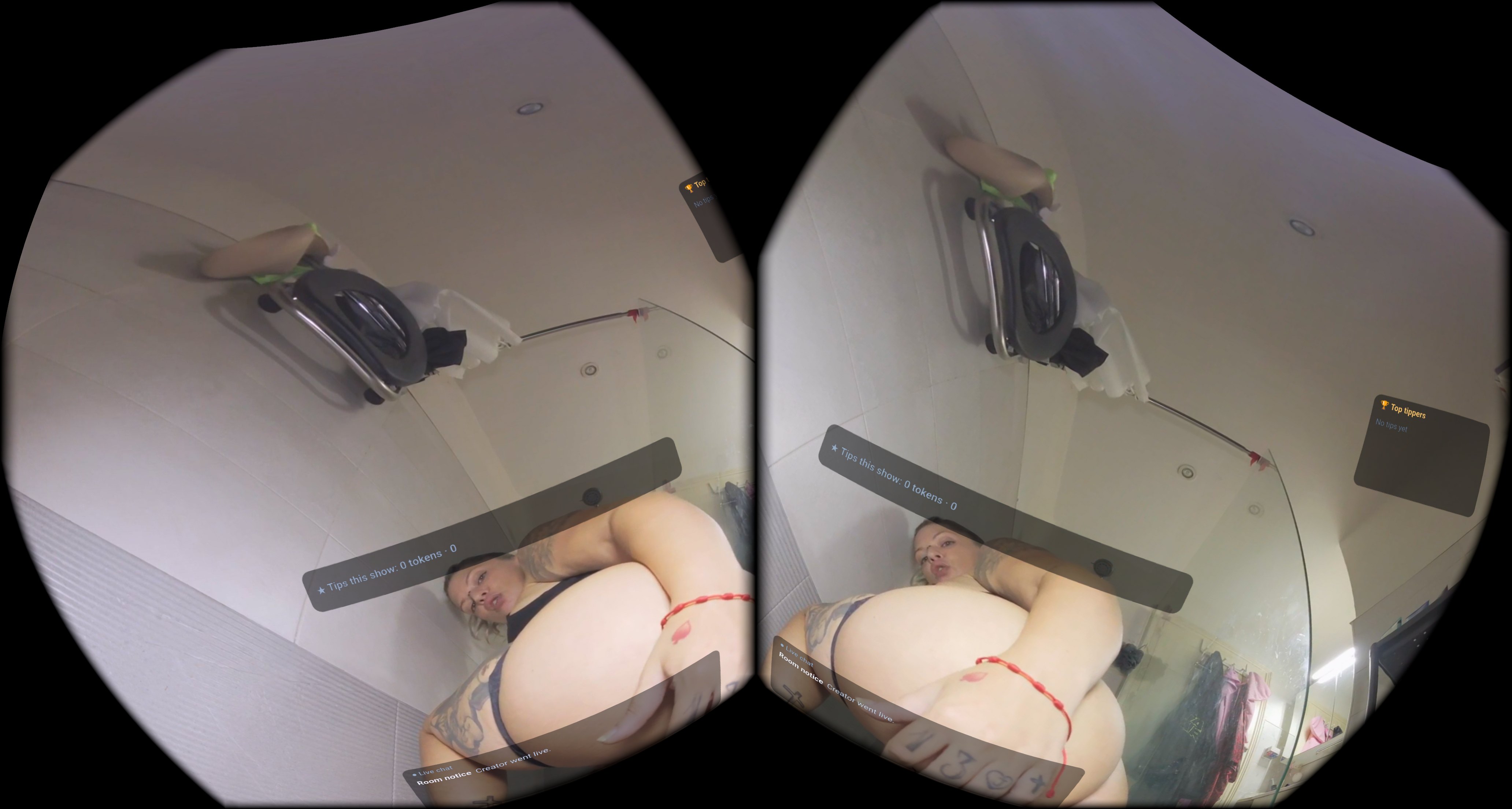
- In the headset browser open guyscat.com/vrfeed and enter VR.
- Open the Live tab. Your show is there with your name, viewer count and a snapshot.
- Open it. You should see depth (not a flat picture), one picture (not two next to each other), no round edges, and more room to the left and right when you turn your head. The sound plays too. Your fans see you about 2–3 seconds later.
Replays. With Record shows switched on in your studio settings, a VR180 show is recorded in full VR resolution (3840×1920). Afterwards it appears under Recordings with the chip “VR180 replay”: press Encode as VR clip, wait until it says ready, then Publish as clip as with any recording. The clip keeps VR180, is marked “Replay” in the hub and sells like every VR clip — it shows up there about two minutes after publishing, once its trailer has been generated.
8. What viewers without a headset see
On phones and computers fans see your show in a normal player. They can drag with the mouse or a finger to look around; on a phone they can tap Move phone to look around and simply turn the phone. Flat view shows the plain picture. You don’t need to set anything up.
9. If something doesn’t work
| Problem | Why | What to do |
|---|---|---|
| Studio keeps saying “Waiting for your picture…” | Wrong stream key or server, or your internet blocks the connection | Copy server and stream key into OBS again, or click Rotate and paste the new key. If it still doesn’t work, try another internet connection. |
| Picture in the headset looks bent, round circles visible | Your camera sends two round pictures, but the studio is set to “finished VR picture” — or OBS is not using the server for VR180 | In the studio choose the entry with your lens and enter the server for VR180 in OBS (section 5). |
| Picture in the headset is flat, or shows two pictures | The two eyes are not next to each other (e.g. one above the other) | In OBS: left half = left eye, and the picture fills the whole preview. |
| Picture in the headset is blurry | VR180 (for VR headsets) is set to “No — normal show” | Choose one of the “Yes” entries (section 5). |
| Stuttering in the headset | Internet too slow for sending | In OBS: “Bitrate” 16000 or less, “Keyframe Interval” 2, 30 FPS — not 60. |
| No sound | Sound is muted in OBS | Check the audio mixer in OBS; under Settings → Audio choose 48 kHz. |
10. FAQ
Can I stream VR180 from my phone? No. The phone studio uses the phone camera and sends a flat picture.
Do I have to change anything for my normal shows? Set VR180 (for VR headsets) back to “No — normal show”. Everything else stays as it was.
Does VR180 cost me more? No. You only need faster internet for sending — about four times as much as for a normal show.
Is the show recorded? Only if recording is turned on for that show type under My Recordings — same as for every other show. The recording shows both eyes next to each other.
Can viewers on other sites see it? The hub lists live VR180 shows on the site you stream on.