
You decide what a visitor sees first. The pinned row sits at the top of your store page, directly above Top Selling Content, and holds up to 10 items you choose yourself: clips, feed posts, physical items, and a card that sends fans straight to a custom order. You pick them, you put them in the order you want, and you can rename the row.
What the pinned row is for
Everything else on your store page is sorted for you: Top Selling by sales, your clip grid by date. That is useful, but it is not always what you would put in front of a first-time visitor. A new release has no sales yet. A trailer that converts well is three pages down. A series belongs together in order, not scattered by upload date.
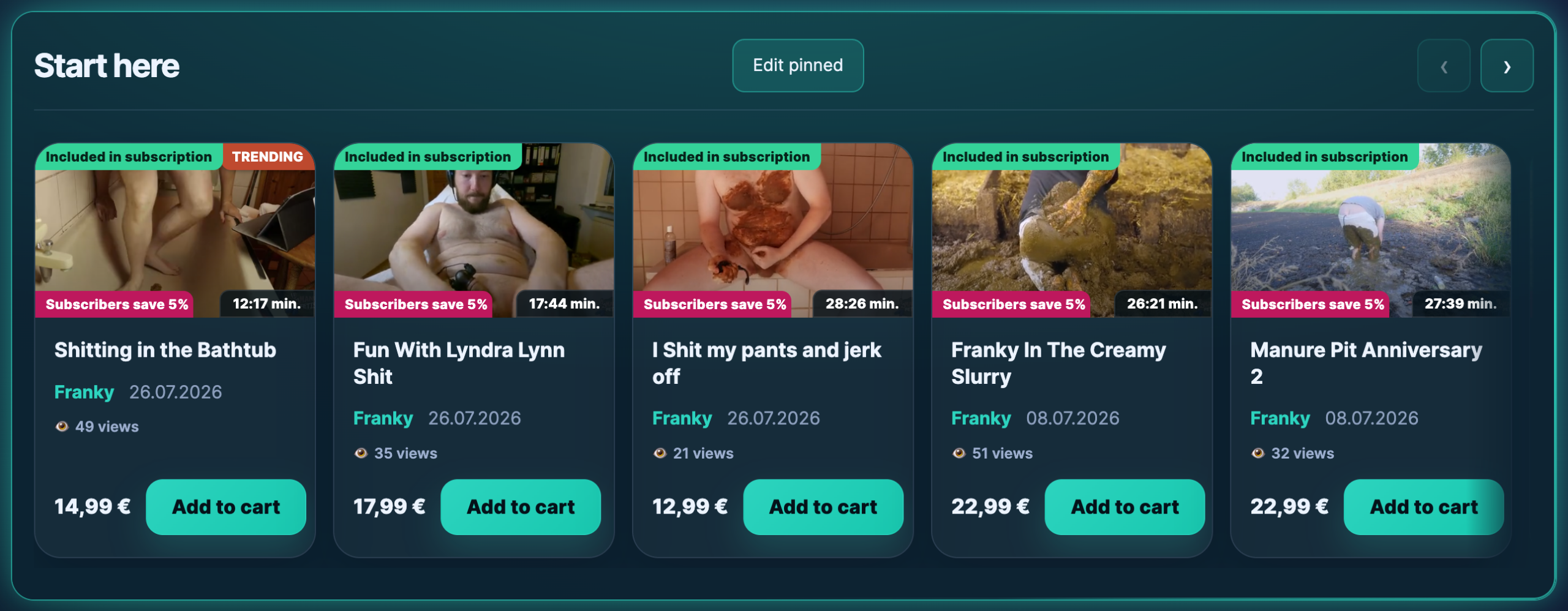
Pinning fixes exactly that. It is a small, curated shelf at the top of your store, a place to arrange, sort and highlight your own content instead of letting the date or the sales counter do it for you. If you have ever wanted to showcase a favourite clip, feature a new release, change the sort order of your store, or simply put one video first, this is the tool for it.
It does not replace anything. Pinning an item does not remove it from your clip list and does not change Top Selling. It is an extra row above them, not a re-sort of your store.
Where to edit it
You edit the row on your own store page, in place, so you always see the result while you work. There is no extra menu point in the store manager to hunt for.

There are two ways in, and both land in the same place.
- From your store page. Open your own store on guyscat.com while logged in. Above Top Selling you see the pinned row with a button labelled “Edit pinned”. Visitors never see that button.
- From the store manager. Go to Settings in your store manager. Near the store fields there is a button labelled “Edit pinned content”. It opens your store page with the editor already open.
If you have not pinned anything yet, the row is still there for you, with the note “Nothing pinned yet.”, so that you can find it. Visitors see nothing at all until you save your first item: an empty row is removed from the page entirely rather than shown as an empty box.
Choosing what to pin
Click “Edit pinned” and the picker opens. It has two halves: your content on the left, your pinned list on the right.
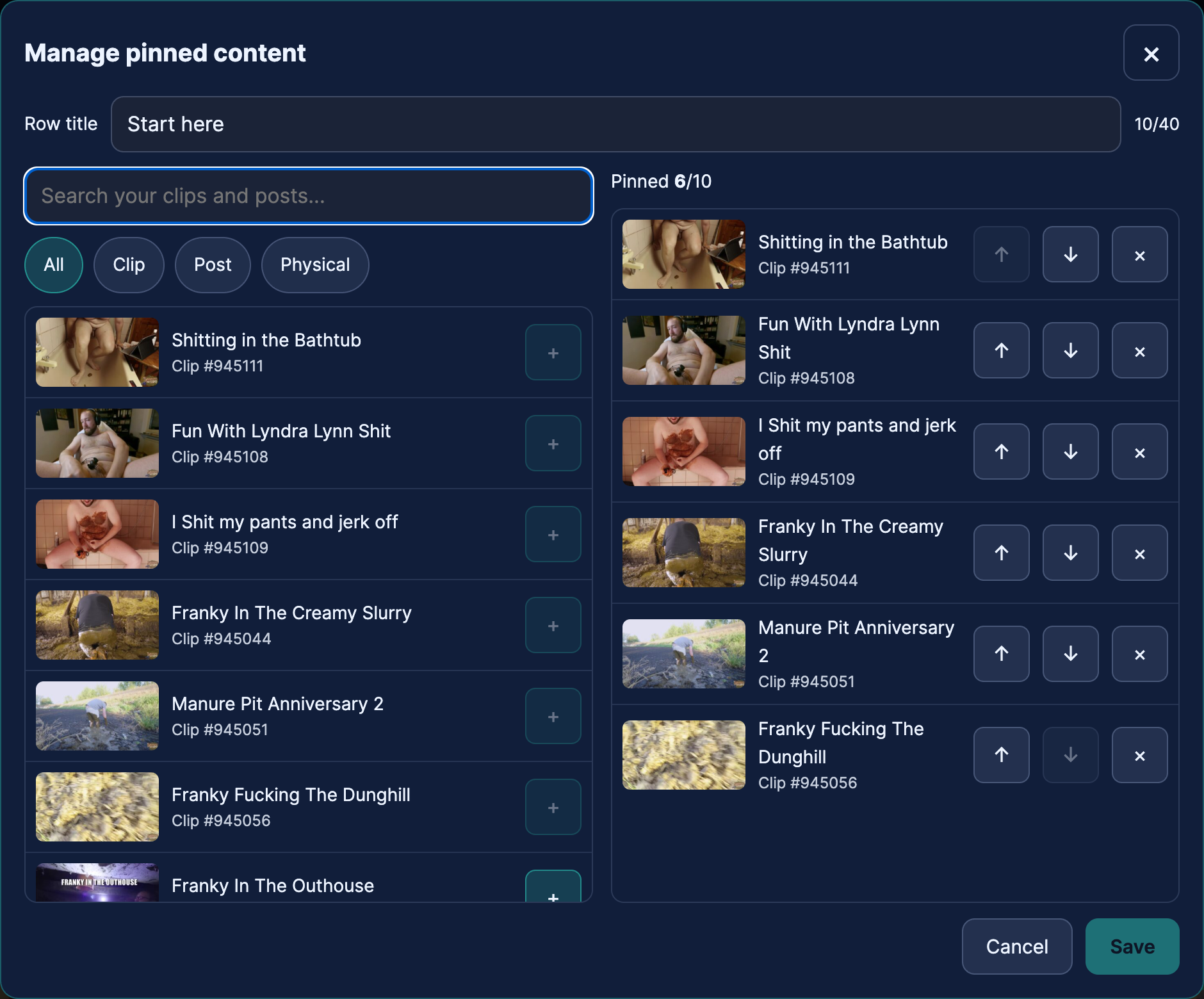
- Search. Type part of a title. Results appear as you type, each with a preview image, so you can see which clip you are picking rather than guessing from a title. Leave the box empty and you get your most recent items.
- Filter. The chips above the results narrow the list to one kind of content: all, clips, posts or physical items.
- Add an item. Click “Add” on a result and it moves to the pinned list on the right. The counter above that list shows how many of your 10 slots are used.
- Put them in order. Use “Move up” and “Move down” on each entry. The top of the list is the leftmost card on your store page, and that first slot is the one people actually look at.
- Save. The change is live immediately. Reload your store page and the row is there.
Looking for something older? The list without a search term shows your newest items. If a clip from last year does not appear, search for a word from its title, or paste its numeric ID, which the search accepts directly.
The custom-order card
If you accept custom orders, the picker also offers a card called “Order a custom video”. It is not a clip. It is a direct route into your custom-order form, and it earns its slot on a store page where custom work is a real part of your income. If you have custom orders switched off, the card is simply not offered.
Renaming the row
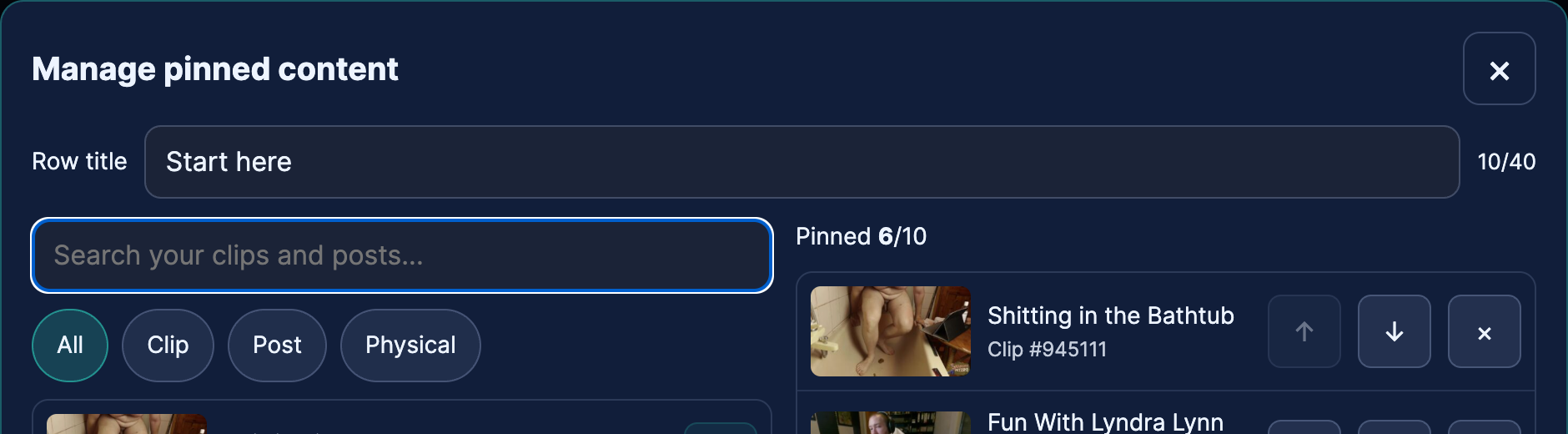
The heading says “Pinned” by default. In the editor you can replace it with your own wording, for example “Start here”, “New this month”, “The series” or “My favourites”, up to 40 characters. What you type is shown exactly as you typed it and is not machine-translated for other languages.
What you can and cannot pin
The rule is simple. If a visitor could not see it anyway, you cannot pin it. The picker and the store page apply the same test, so nothing you are able to add can turn out to be invisible on the page.
- Yours and published. Only your own content, and only content that is actually published.
- Through moderation. A clip must be approved. Anything still in review, rejected or scheduled is not offered.
- Not Telegram-only. Content marked for Telegram distribution only is excluded.
- Not a Special. Specials are excluded on purpose. That content is meant to be discovered where it is placed, not surfaced by title and poster at the top of a store page.
- Subscriber-only posts are allowed. A locked feed post can be pinned, and the picker marks it as subscribers only. Non-subscribers see it locked in the row, exactly as they would anywhere else, which is precisely why pinning one can work as an advert for your subscription.
If something stops being visible later
Content can leave that set after you pinned it. You unpublish a clip, or a moderator sends one back for review. When that happens, three things are true.
- Visitors simply do not see that entry. The row stays intact around it, and nobody gets a broken card.
- The editor tells you. It shows a note with the number of pinned entries that are currently not visible to visitors, so you can decide what to do.
- Your list is not rewritten behind your back. A clip that is temporarily back in review keeps its slot and reappears by itself once it is approved again.
Verification
Pinning becomes available once your account is verified. Until then the row shows you the note “Pinning unlocks once your account is verified.” and the edit button is not offered. Nothing is lost. The feature simply arrives with the rest of your creator tools.
Getting the most out of ten slots
- Lead with the strongest thing you have, not the newest. The first card carries the most weight, and the tenth is rarely reached.
- Mix the kinds. A store page that shows a clip, a locked post and a custom-order card in the same row tells a visitor in one glance what they can buy from you.
- Keep a series in its own order. Parts one to four in sequence is the one case where the date sort is actively wrong.
- Do not fill all ten out of duty. Four strong items look considered. Ten mediocre ones look like a second clip grid.
- Change it when something changes. A release week, a sale, a new physical item: the row takes a minute to reorder.
Common questions
Does pinning affect my ranking, or push my clip in search?
No. Pinning changes the order on your own store page and nothing else. It does not affect Discover, the clips browser, search results or Top Selling.
Can I pin another creator’s clip?
No. Only your own content is offered.
How do I unpin something?
Open the editor, click “Remove” on that entry, and save. The item itself is untouched. It stays on sale and stays in your clip list.
How many items can I pin?
Ten. When the list is full, the editor tells you to remove one before adding another, rather than silently dropping the oldest.
Does the row work on a phone?
Yes. On a narrow screen the row scrolls sideways, the arrows in the heading move it, and you can swipe.
Why can I not find a specific clip in the picker?
Work through the list above in order. Is it published, is it approved, is it a Special, is it Telegram-only? One of those four is nearly always the answer. A clip still in review appears the moment it is approved.
Related
- Customising your store — everything else a visitor sees on the same page.
- Top performing clips — the numbers that tell you which clips deserve a pinned slot.
- Posting to your feed — feed posts can be pinned too.
- How custom orders work — what the pinned custom-order card leads to.
- Pricing your clips — worth reviewing before you put a clip in your best slot.