
Video guide
Prefer to watch? This video walks through making a post — from opening the form to publishing, including subscriber-only posts and all the extras.
Your feed is your direct line to fans — a place to share quick updates, photo sets and short videos between your live streams. Here’s how to make a post, step by step.
Finding your feed
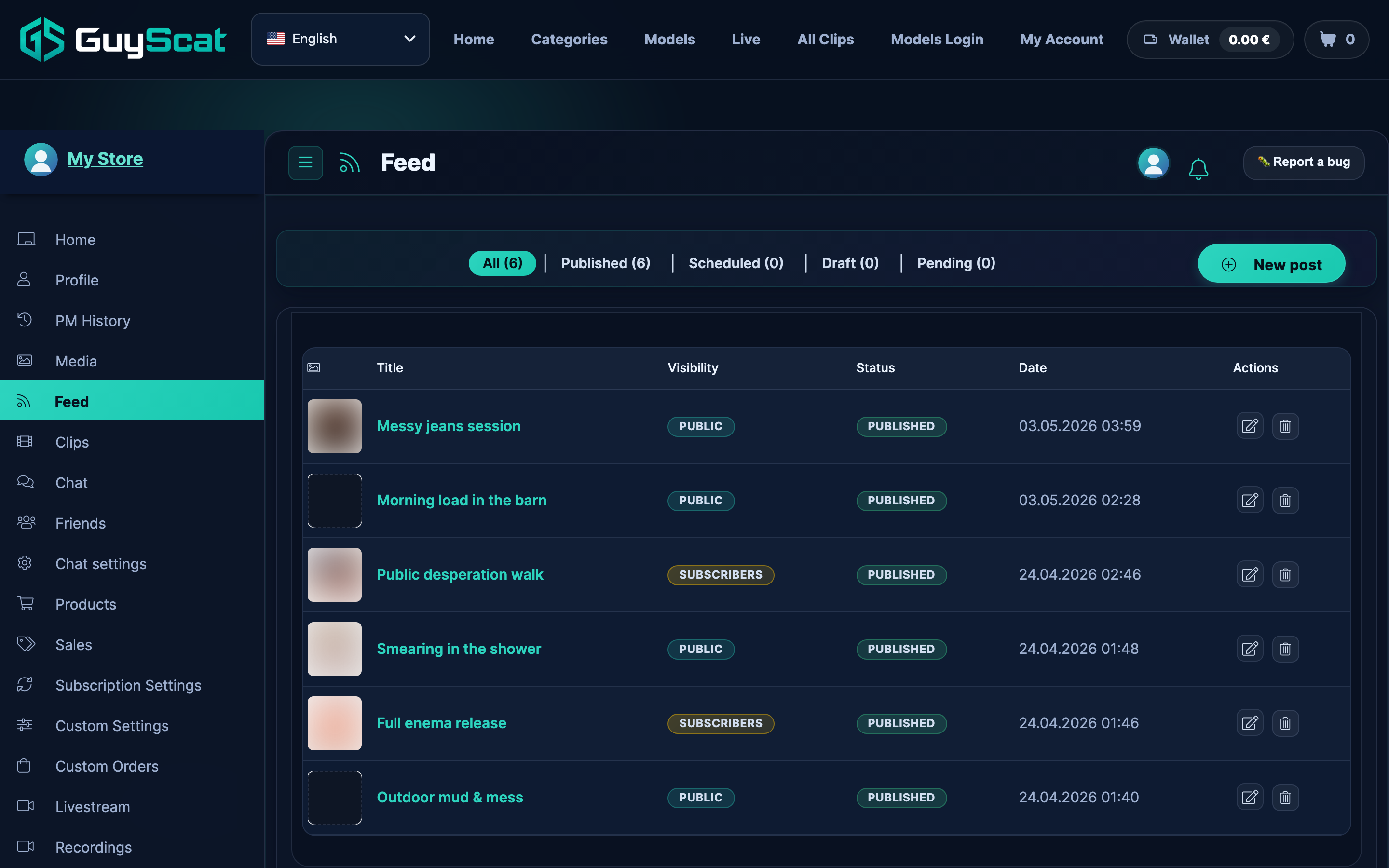
Sign in and open your store manager, then click Feed in the menu. You’ll see every post you’ve made so far. Click New post at the top to start a new one, or click any post to edit it.
Tip — bulk upload: if you have many videos to post, you can bulk-upload clips and trailers in one go. They then appear in the “choose an existing video / trailer” menus while you create a feed post — no need to upload them one at a time.
Making a post
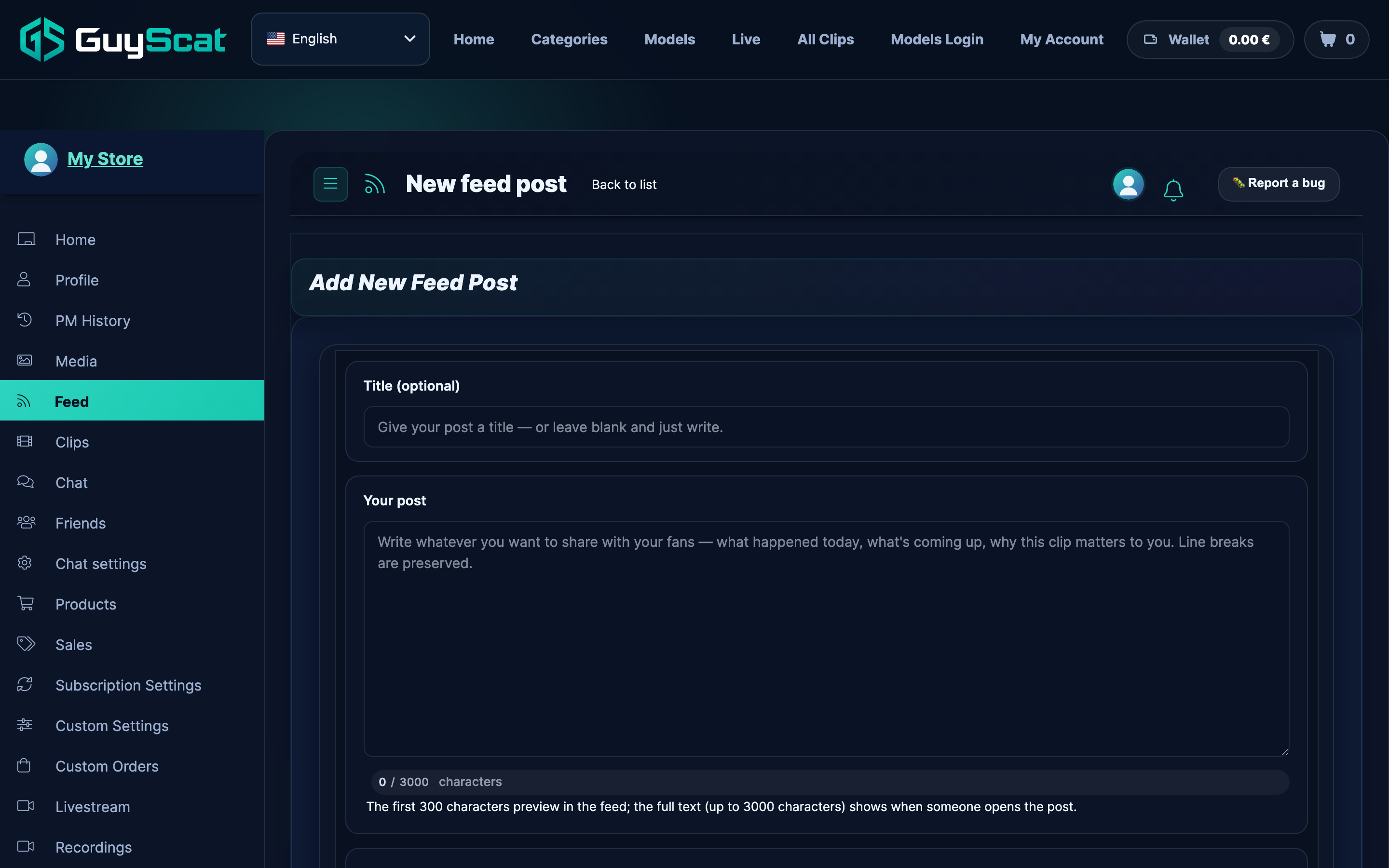
Title (optional)
Add a short headline if you like, or leave it blank and just write — both are fine.
Your post
Write whatever you want to share — what you got up to, what’s coming next, why a clip means something to you.
One tip: the first line or two is what fans see in the feed before they tap to read more, so put your hook right at the top.
Tags
Add a few tags so fans can find your post — type a word and press Enter. Tags also help your post show up in the right places in the Discover feed.
Who can see it
- Public feed — anyone signed in can see the whole post.
- Subscribers only — your text still shows as a teaser, but the photos and video are blurred behind a Subscribe to unlock button. Only your subscribers see the full thing.
There’s more on this in Locking feed posts to subscribers.
Streaming only, no download (optional)
If your post has a video, you can tick Subscription video — streaming only, no download. That makes the post subscribers-only and lets fans watch it but not save it. Use it for anything you’d rather wasn’t downloaded.
Schedule it for later (optional)
Tick Schedule this post for later and pick a day and time. The post stays hidden and goes live on its own at that moment — handy for writing a few posts at once and spacing them out.
Auto-unlock later (optional)
On a subscribers-only post you can tick Auto-unlock for everyone after a specific time and pick a date. Your subscribers get it first, and after that time everyone can see it — a nice way to give subscribers a head start.
Photos
Click Add images or drag your photos onto the upload box (JPG, PNG, WebP and GIF all work). Drag them to put them in order — the first one is the cover. Tap the × on a photo to remove it.
Video (one per post)
There are two ways to add a video:
- Upload a new one — click Select a clip and choose your file. A bar shows how the upload is going. (MP4, MOV, M4V or WebM, up to 26 GB.)
- Reuse one you’ve already uploaded — click Choose an existing video, type a few letters of its name in the search box, and tap the one you want. No need to upload it again.
Once a video is added it shows as a small card. To swap it, tap the round red × in its corner and add a different one.
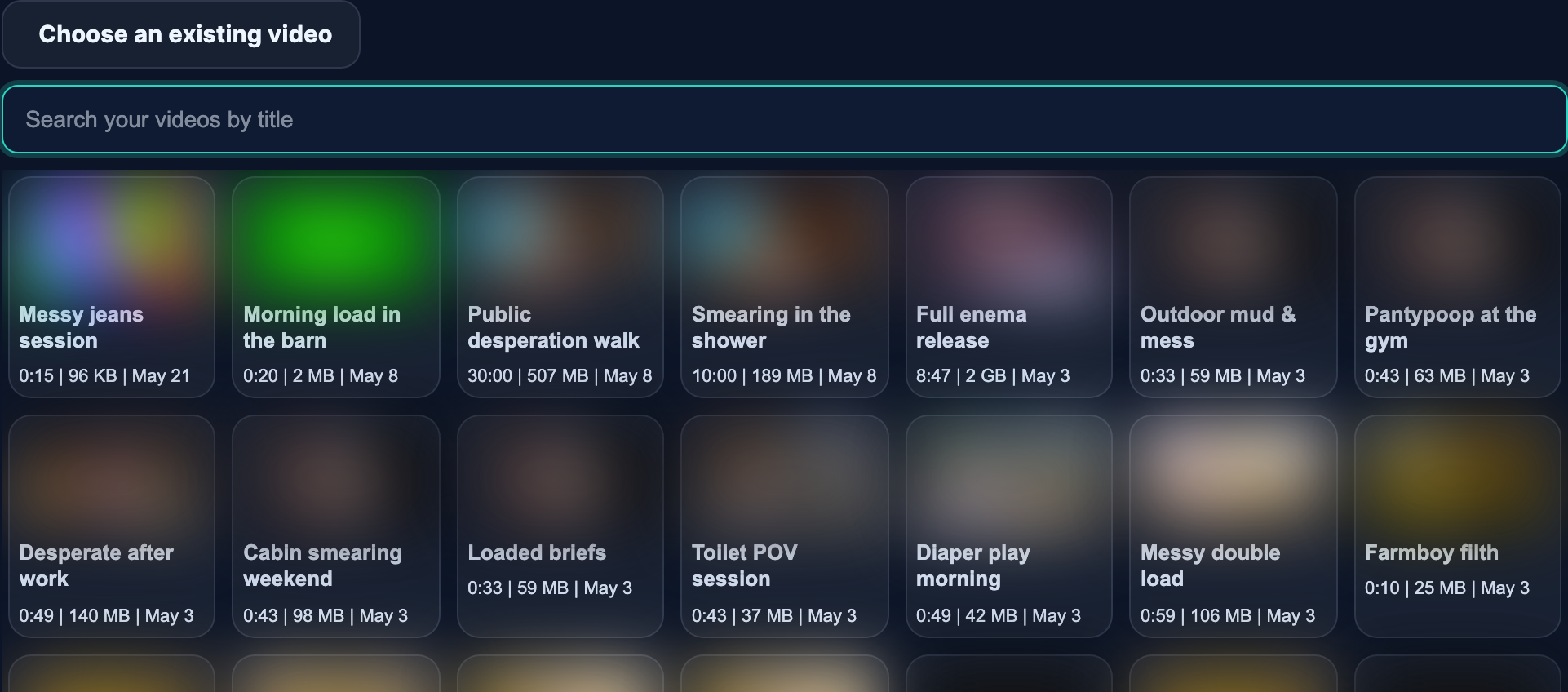
Feed videos can be any length — a quick behind-the-scenes teaser or a full video for your subscribers. The difference: feed videos are part of your feed (free or subscribers-only), while clips you want to sell individually go through the clip uploader.
Trailer (optional)
A trailer is the short, silent preview that plays on your post in the feed before a fan taps to watch. Two ways to add one:
- Let us make it for you — leave it empty and we’ll create a short trailer from your video automatically. It shows up on the post a little after you publish.
- Upload your own — add your own trailer file if you want to choose exactly what plays first.

Connected X (Twitter)? If you’ve linked your X account, posting a video to your feed also shares a short silent teaser on X with a link back to your post — a free little promo every time. There’s nothing to set up.
Saving and publishing
- Save draft — keeps it private so you can finish it later.
- Publish (or Update if you’re editing) — sends it out to your followers and subscribers.
What fans see
Your post shows up as a card in the feed of everyone who follows you, and on your store’s Feed tab. They see your name and photo, when you posted, the first line or two of your text, your photos, and your video preview. If you add a lot of photos, fans see the first few and a small +3 they can tap to open the rest. There are like, comment and tip buttons under each post.
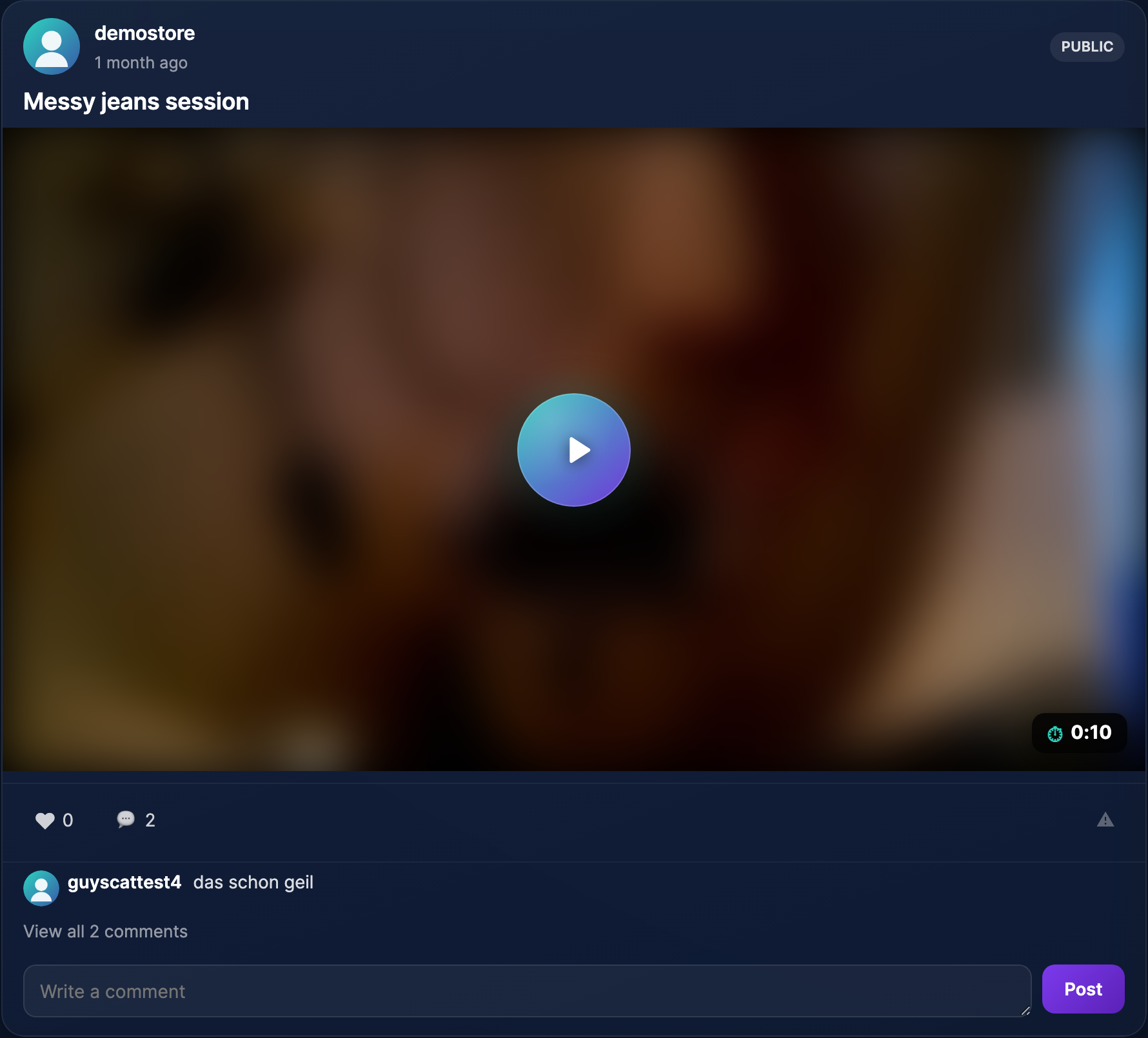
On a subscribers-only post, anyone who isn’t subscribed just sees your teaser text and a Subscribe to unlock button.
What the statuses mean
- Published — live now.
- Draft — saved, not visible yet.
- Scheduled — waiting for its time, then goes live on its own.
- Pending — being reviewed (this is rare).
A few tips
- Post a couple of short things a week, plus one bigger subscribers-only piece.
- Tease in public, deliver to subscribers: “Shot something wild today — full set goes up Friday for subscribers.”
- Write a few posts on a quiet day and schedule them across the week, so you’re not starting from scratch every day.
Questions creators ask
Can I edit a post after publishing?
Yes — open it, change anything, and hit Update. Fans see the new version.
Can I delete a post?
Yes — there’s a delete option on each post in your list. Once it’s deleted it’s gone from everyone’s feed.
Can I change a post from subscribers-only to public later?
Yes — open it, switch it to Public, and hit Update. (Going the other way works too, but some fans may already have seen the public version.)
Can I post just text?
Absolutely. A title, photos and video are all optional — a text-only update is perfectly fine.
Do I have to upload my video again if it’s already on GuyScat?
No — use Choose an existing video and search for it by name. No re-upload needed.
Do I have to make a trailer?
No — leave it empty and we make a short one for you. Only upload your own if you want to pick exactly what plays as the preview.
I just posted a new video but there’s no preview yet — why?
When you upload a brand-new video, the post goes live straight away and the trailer is added a few minutes later, once the video finishes processing. (If you reused a video you’d already uploaded, the trailer is ready almost right away.)
Do my followers get an email when I post?
Followers and subscribers get a round-up email of new posts now and then (how often depends on their own settings). Your post also shows in the feed and on your store straight away.
What if a post gets flagged?
It’s rare, and reviews usually clear within a day. If something is removed, we’ll send you a message explaining why.
Need more help?
If something looks broken or you’re not sure about anything, open a ticket from Contacting support and tell us which post you mean.