
The bot is where you buy, watch and manage everything you get through Telegram. Tap the menu, pick what you want, and it happens in the chat. Paying always moves to a normal payment page — the bot never asks for card details.
1. Opening the bot
A creator’s bot link looks like t.me/theirname_brand_bot. Open it and press “Start”. Two things can happen, and both are normal:
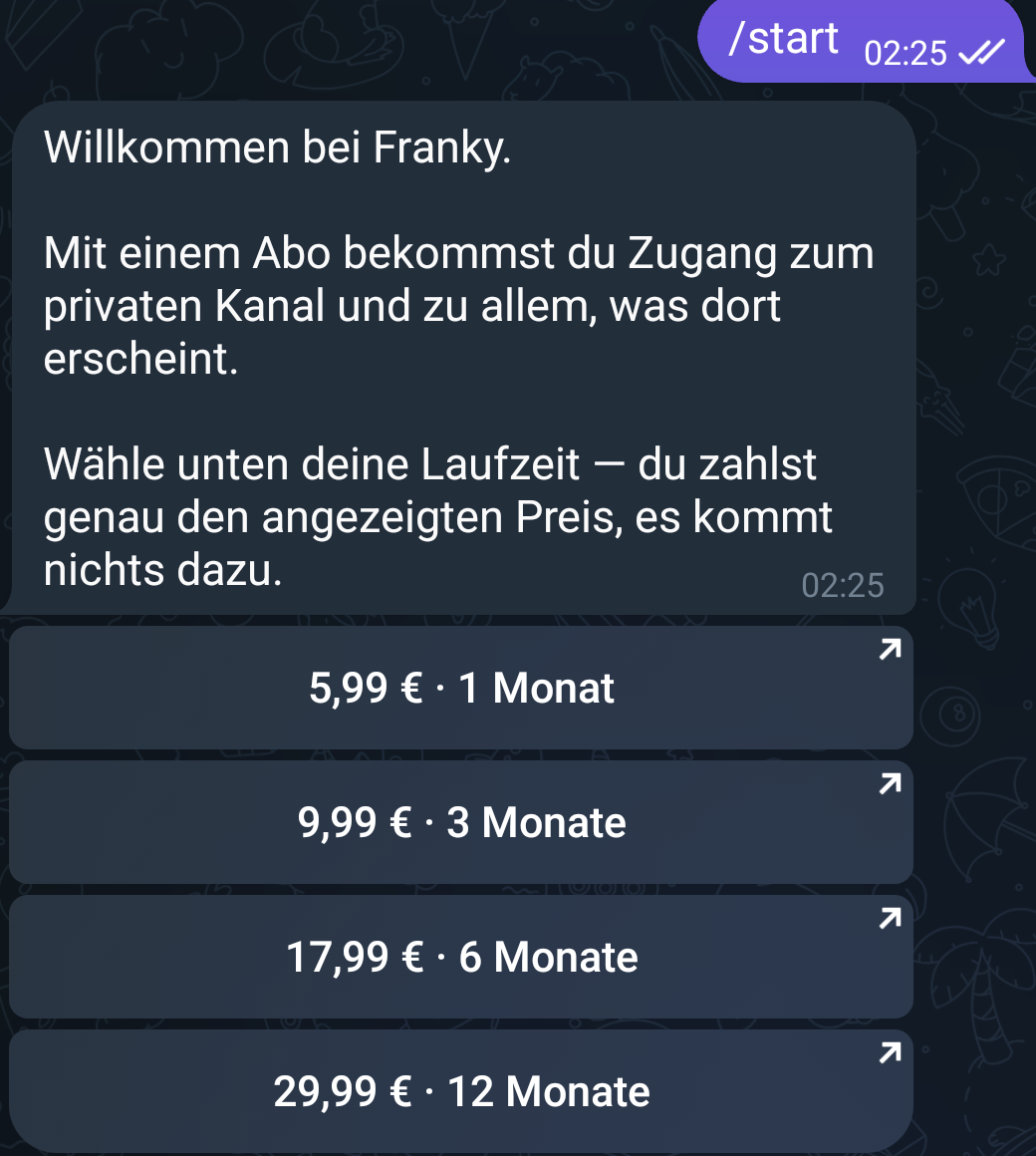
- A creator’s bot greets you with their subscription and the prices they offer.
- The brand’s own bot opens the menu straight away.
The bot is not a person and not a chat. If you type something else, nothing happens — that is not a fault. Everything runs through the menu and three commands.
| Type this | What it does |
|---|---|
| /start | Opens the menu. |
| /options | The same menu, any time. |
| /subscription | Shows your subscriptions and lets you cancel. Only on a creator’s bot. |
/help works too. It is not in the command list Telegram shows you, but if you type it you get the menu.
2. The menu
The bot writes “What would you like to do? Choose an option:” and shows buttons. Depending on the creator you will see:
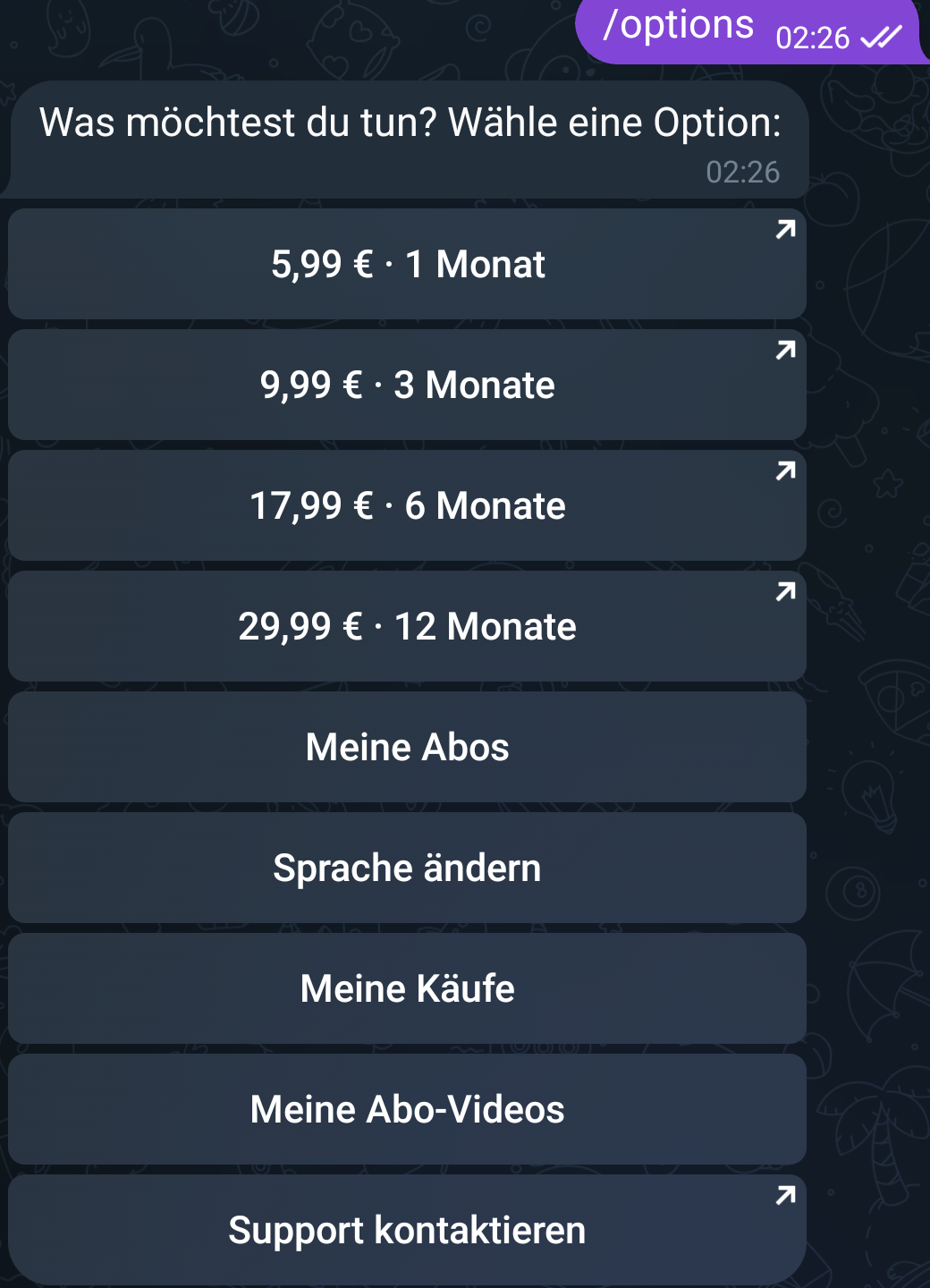
- The subscription prices, one button per length — for example “€49.99 · 1 month”.
- My subscriptions — what is running, when it renews, and where to cancel.
- Change language — see section 6.
- My purchases — the single clips you bought.
- My subscription videos — everything included in a subscription you pay for.
- Contact support — opens the support page on the website, already signed in — no password needed.
Each of these replaces the message you are looking at instead of adding a new one, and every view has a “Back” button. Your chat does not fill up.
If a creator has not set up a subscription, the bot says so plainly: “This creator does not offer a subscription right now.”
3. Linking your account — the step most questions come from
Buying and watching work best when your Telegram is linked to your account on the website. There are exactly two ways to link, and neither happens by itself.
| Way in | How |
|---|---|
| Buy once through the bot | You enter your email at checkout, and that is the link. If you have no account yet, one is created for you. |
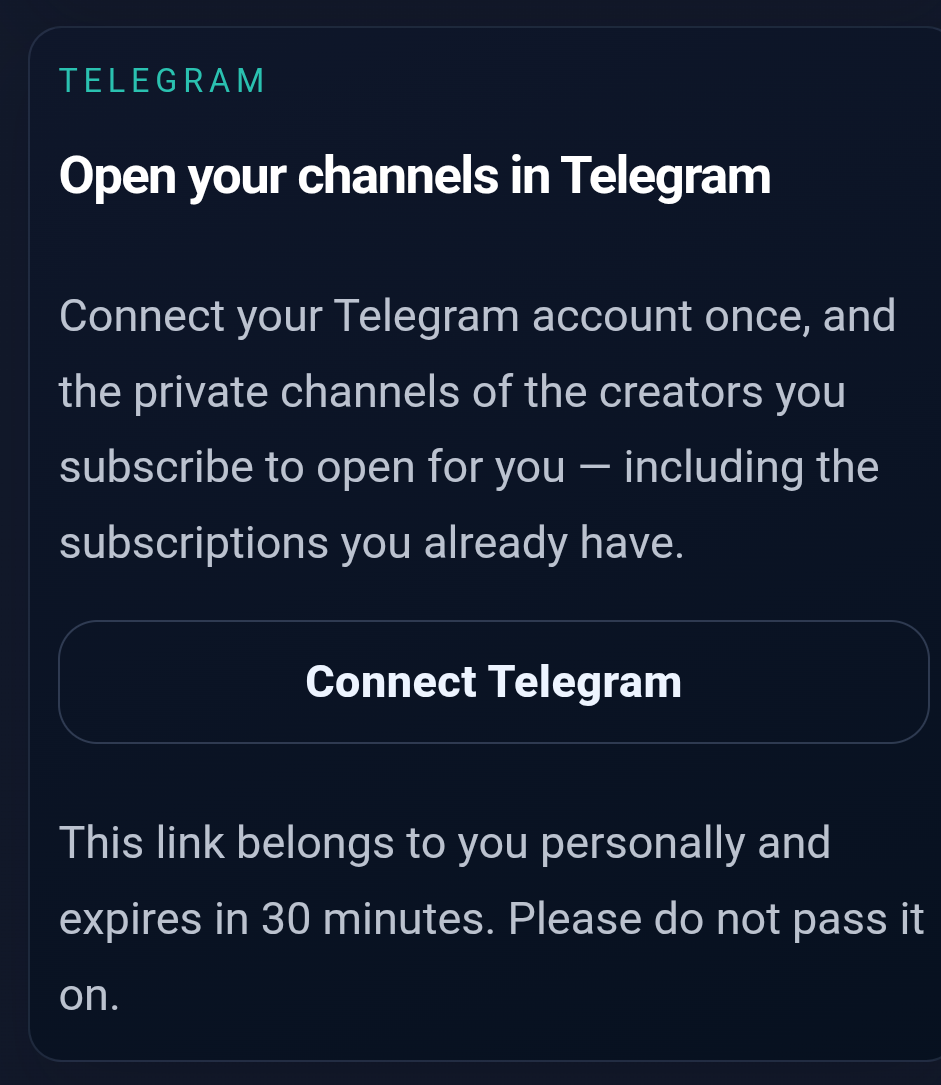
| From your account on the website | Go to your account, find the Telegram card, and press “Connect Telegram”. It gives you a personal link that opens the bot. |
The link from your account is personal, works once, and expires after 30 minutes. Do not pass it on. When it works the bot replies “✅ Connected.” and, if you already have running subscriptions, your channel invites arrive within moments.
Just opening the bot does not link you. If “My subscriptions” or “My subscription videos” is empty although you are paying, this is almost always the reason. Connect from your account and everything appears.
4. Buying a single clip
Clips posted in a channel carry a button. Which one you see depends on the clip:
| Button | Meaning |
|---|---|
| Unlock | You can buy this clip on its own. |
| Watch now | You already have access — through a purchase or a subscription. |
| Buy separately | The clip is in the subscription, but you can also buy it once without subscribing. |
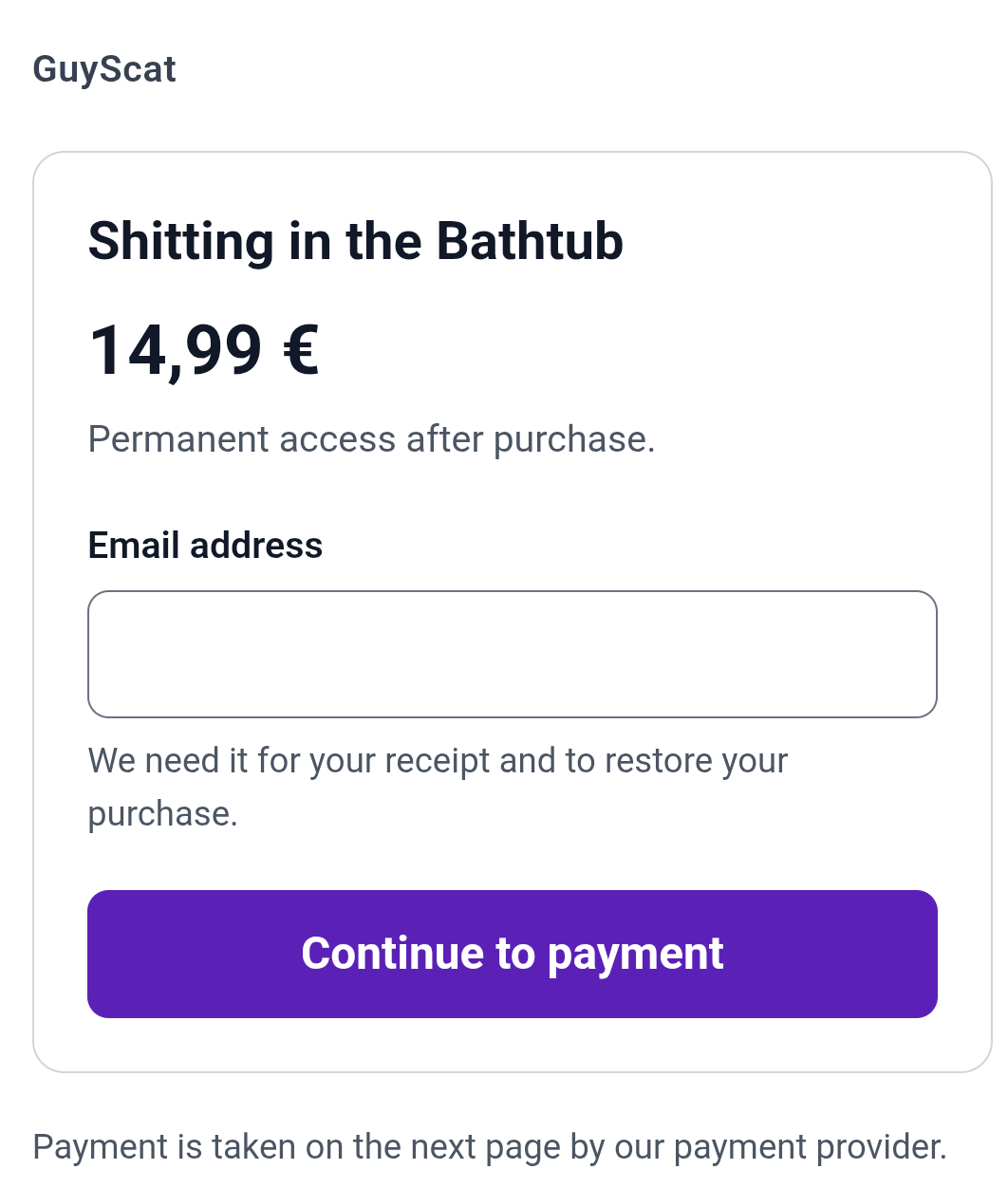
The post also tells you how long your access lasts, before you pay: “Permanent access after purchase”, or 12 hours, 24 hours, or 7 days. It is written on the post, so there is no surprise afterwards.
Tapping the button opens a small page with the title, the price, and one field for your email address. The note under it says why: we need it for your receipt and to bring your purchase back if you change device. Then “Continue to payment” takes you to the normal payment page.
Payment never happens inside the bot. The bot shows and forwards; the payment page belongs to our payment provider. If a message in Telegram ever asks you for card details, it is not us.
After the payment the bot sends you the clip with a “Watch now” button. Sometimes there is a second button, “Watch in my library” — it appears when the clip also exists on the website.
5. Subscribing, and getting into the channel
Press one of the price buttons — for instance “€139.00 · 3 months” — and you go to the same kind of payment page. The prices are exactly what is written on the button. Nothing is added at the end.
After the payment, you are not put into the channel automatically. The bot sends you a message:
🎉 Subscription confirmed
You now have access to <channel>.
👇 Tap below to join.
Tap “🚀 Open the channel” and you are in. The invite is personal and works once, so do not forward it — it will not work for anyone else and you may need it yourself.
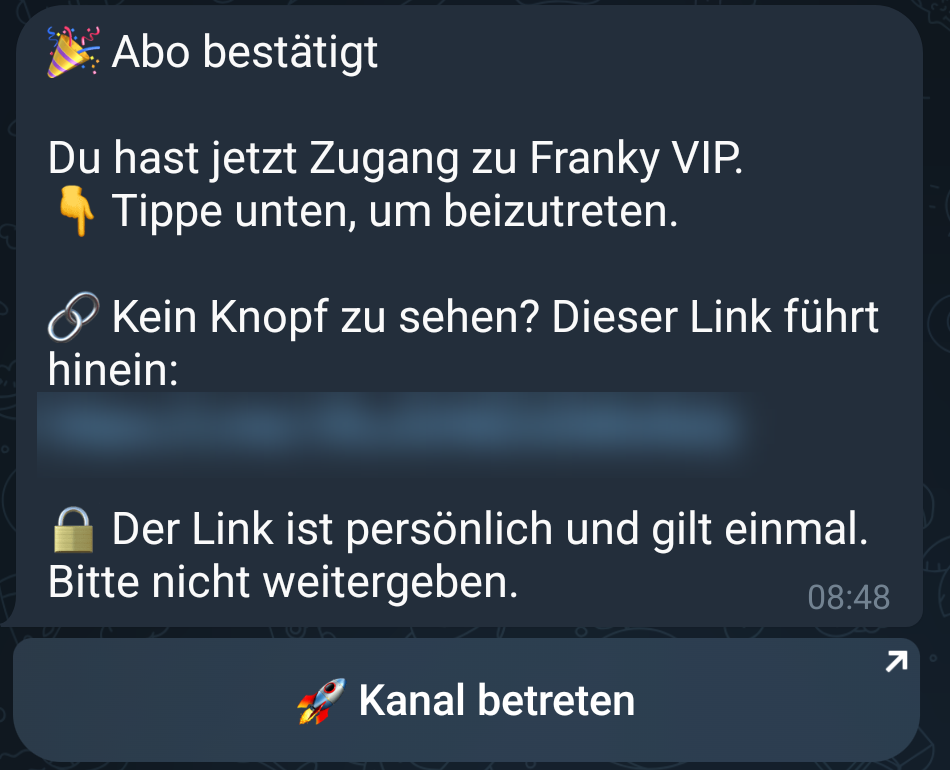
If you never pressed “Start” in the bot, that message cannot reach you. Telegram does not let a bot write to someone who has not opened it. Your access exists, but the invite is stuck. Open the bot, press Start, and ask support to resend it.
If you try to join a private channel without a subscription, you are removed again within seconds and the bot explains why. Subscribe and a fresh invite arrives on its own.
Before a subscription ends you get a warning that names the date and what you would lose. If you renew, nothing is interrupted.
6. Watching
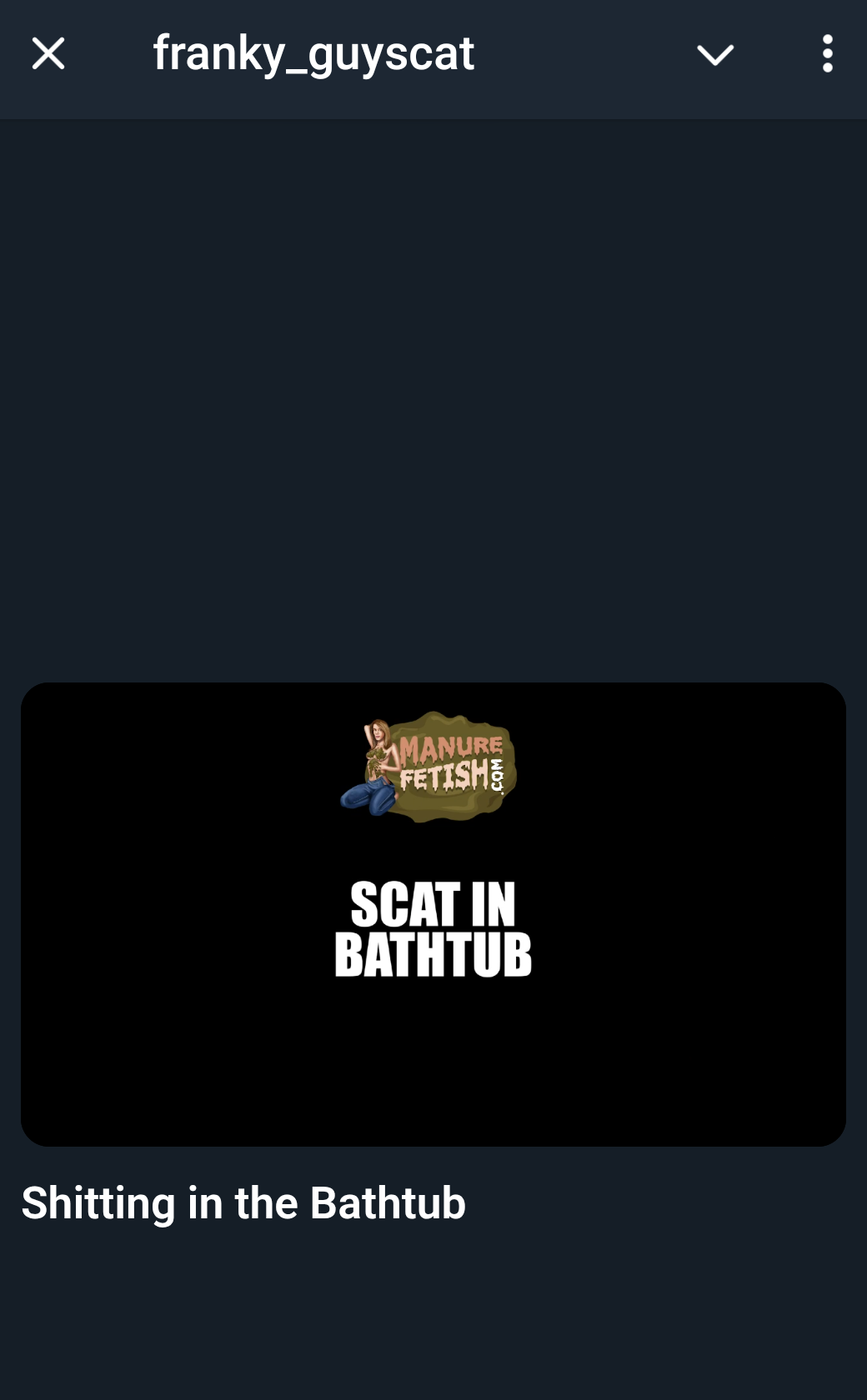
Videos play inside Telegram in a small player. Nothing is downloaded into your chat, and the video file itself is never sent — that is what keeps a creator’s work from being forwarded around.
What the player tells you:
| Message | What it means |
|---|---|
| You do not have access to this yet | You have not bought it, and it is not in a subscription you pay for. There is an “Unlock” button. |
| Your access has expired | It was a timed purchase and the time is up. You can unlock it again. |
| Open this from Telegram | You opened the link in a normal browser. Go back to the chat and tap the button there. |
| This video is not available | The creator removed it, or it is still being processed. |
When you have no access yet, the player still shows you the trailer, the poster and the price — so you can see what you would be buying.
7. Finding things again
My purchases lists every clip you bought, eight at a time, with “« Newer” and “Older »” to page through. Each one has a play button. Under each title it says “Permanent access”, or the date and time your access ends. Purchases whose time has run out stay in the list, marked “Access expired”, so you can see what you had.
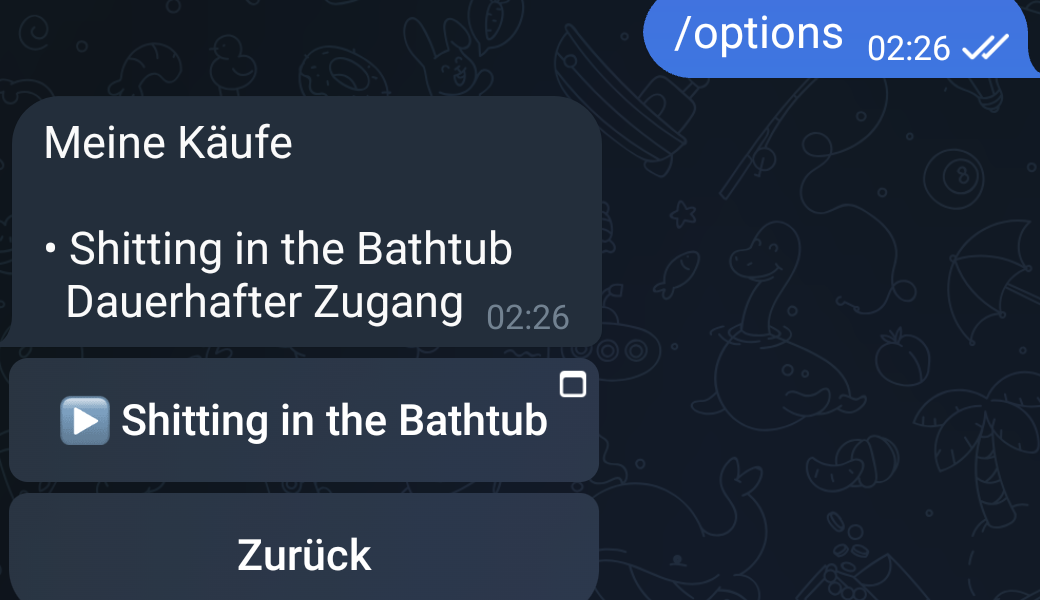
My subscription videos lists what is included in the subscriptions you pay for, grouped by creator.
If this list is briefly empty around your renewal date, wait a little. While a renewal payment is being confirmed the subscription is not counted as running, and the list can be empty for a few hours. It fills again by itself once the payment is through.
8. Changing the language
The bot writes to you in the language of your Telegram app, without you doing anything. If you want a different one, press “Change language”. You can choose English, Deutsch, Español, Français, Italiano, 日本語, Polski, Português (BR) or Português (PT). The one in use has a tick. “Use my Telegram language” goes back to following your Telegram app.
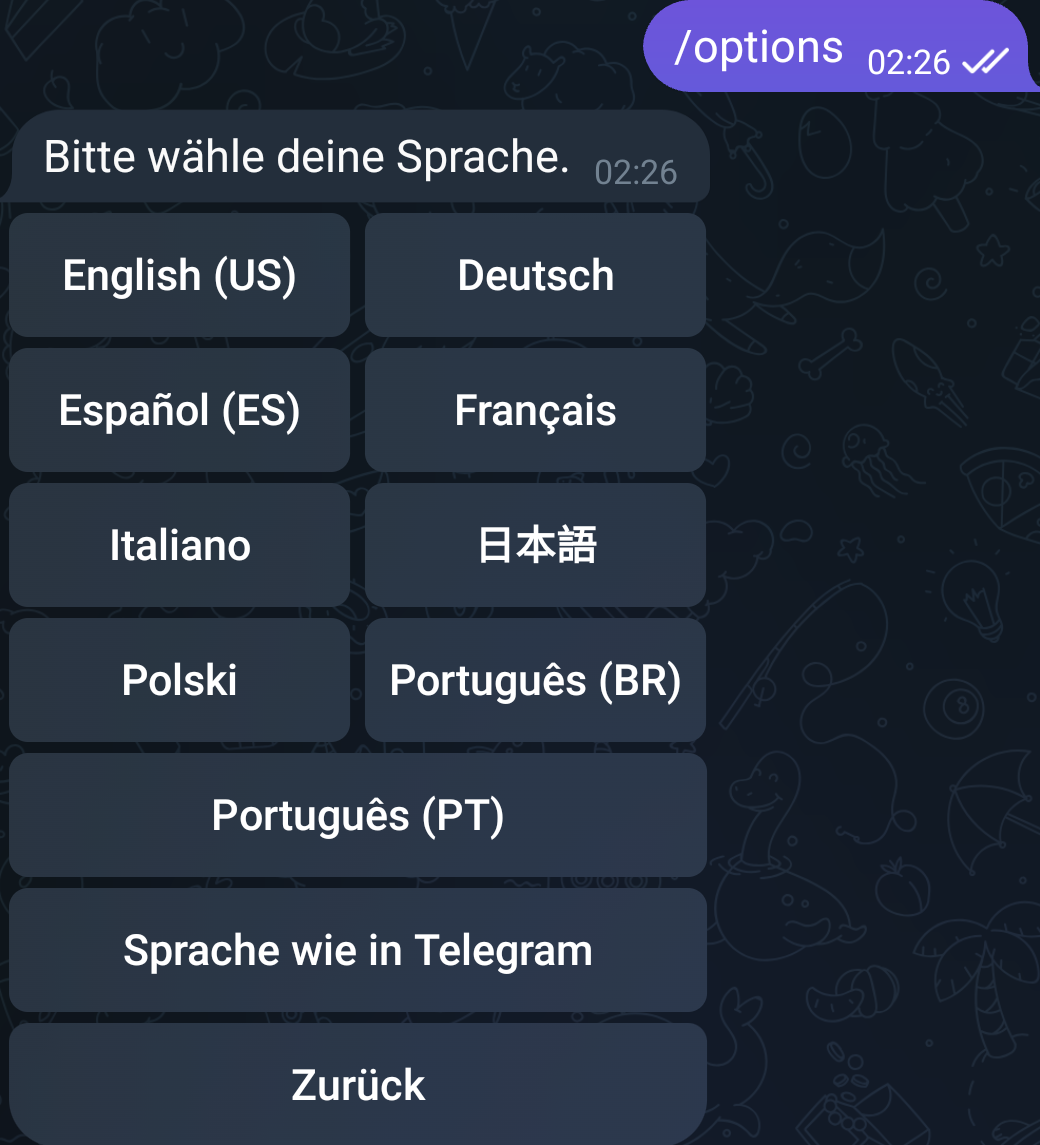
Two parts are only available in English and German at the moment: the player, and the subscription page you reach from /subscription. If you use another language you will see English there.
9. Cancelling
Send /subscription, or press “My subscriptions” in the menu. You see each subscription with its status and next payment date, and a button next to it — “Cancel — <creator>” in the chat, or “Manage or cancel — <creator>” from the menu. Both lead to the same page.
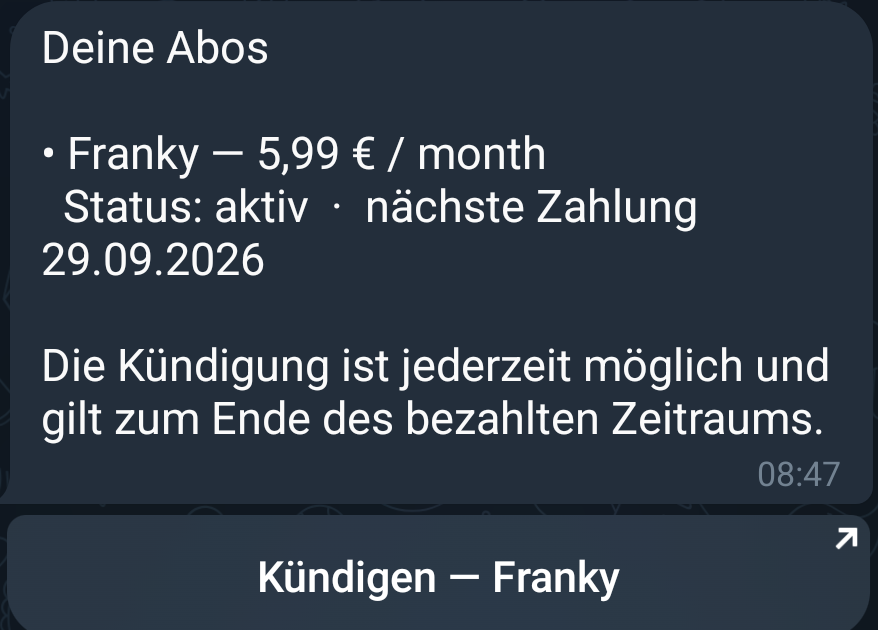
That page states it plainly before you press anything: the button cancels immediately, and your access continues to the end of the period you have already paid for. Nothing is charged again. You get a confirmation by email as well.
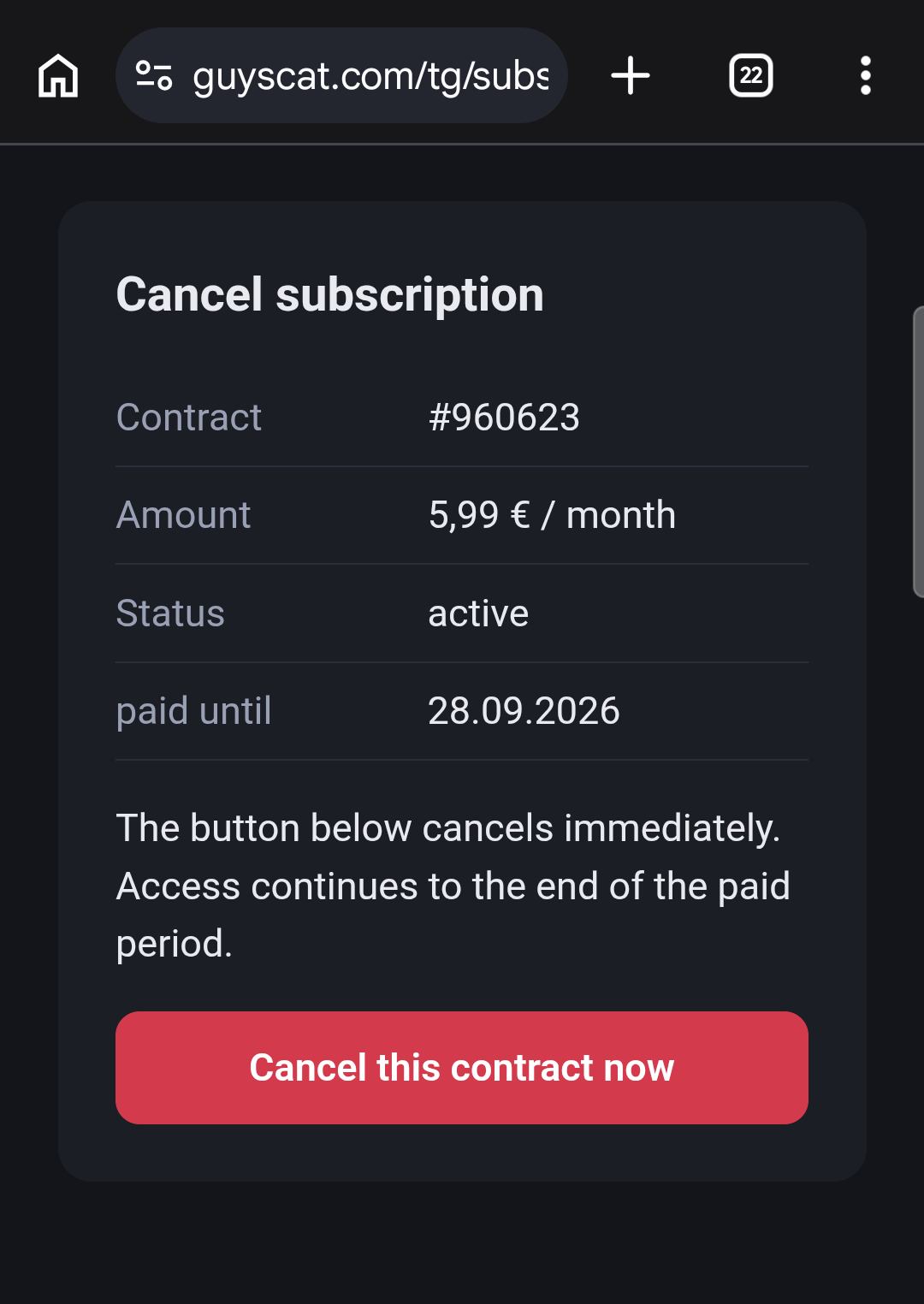
The cancel link is valid for 24 hours. If it has expired, send /subscription again for a fresh one.
Cancelling is deliberately not a single tap in the chat. It ends a contract, so it asks you once on a proper page.
10. What the bot cannot do
Some things belong on the website, in your account:
- Paying. The bot always hands you over to the payment page.
- Changing your payment method.
- Topping up your wallet.
- Refunds and order questions — use “Contact support”.
- Invoices and your full order history.
“Contact support” opens the support page in your browser rather than inside Telegram. You do not have to sign in and you do not need a password: the link signs you in automatically, even if you have only ever bought through the bot. It works once and stops working after a few minutes — if that happens, send /options in the bot and open it again. Writing to the bot itself does not reach anyone.
Questions
I paid but I am not in the channel. What now?
Open the bot and check for a message with an “Open the channel” button. If there is none, you probably never pressed “Start” in the bot — do that, then contact support so the invite can be sent again.
My subscription videos list is empty although I pay.
Either your Telegram is not linked to your account — connect it from your account page — or a renewal payment is being confirmed right now, in which case it fills again by itself.
Can I share my invite link with a friend?
No. It is personal and works once. Your friend would be removed within seconds, because access depends on their own subscription and not on the link.
Does the bot ever ask for my card details?
Never. Payment always happens on the payment page you are forwarded to. Treat any message asking for card details in Telegram as a fraud attempt.
I bought a clip and changed phone. Is it gone?
No. It hangs on your account, which is why the email at checkout matters. Open “My purchases” in the bot, or your library on the website.
What happens when my subscription ends?
You are removed from the private channel, but not blocked. Subscribe again at any time and you get a new invite straight away.
The bot does not answer when I write to it.
That is normal. It only understands the menu and the commands. For a real answer use “Contact support”.
Related
- How the wallet works — the wallet lives on the website, not in Telegram.
- Why did my wallet balance change — where your money went.